Letters and Prepared Reports
Add your personal signature to a prepared business letter, proposal or report. Check that the recipient accepts the document format you intend to use.

YOUR SIGNATURE. YOUR DECISION.
Add your personal signature to a PDF on your phone or computer. Place it on the actual page, review the document and authorise your signature before creating the completed PDF.
Verify your email · 14-day personal trial · 10 completed documents total
A PRACTICAL DOCUMENT TOOL
Add your own signature image to a PDF without printing and scanning the whole document. Save your signature in Settings, upload the document and place the signature on the actual page. You can also type your name instead.
The document workspace supports phone and computer browsers. Drag the mark to position it, adjust its size and save a draft if you need to pause. Review every page and explicitly authorise your signature before creating the completed PDF.
Follow the Steps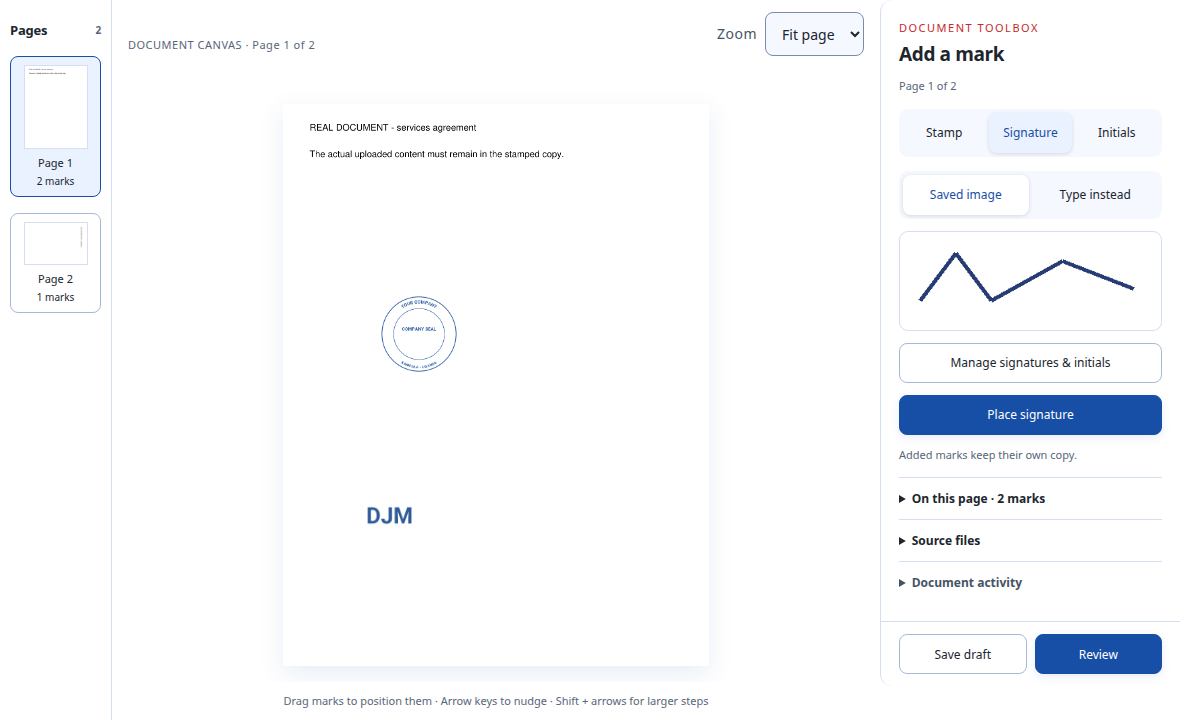
STEP BY STEP
Open the avatar menu and choose Signatures & initials. Upload your personal signature image, or use Type instead when adding a mark.
Upload a PDF or Word file in Documents. On a phone, open Add mark. Choose Signature and Place signature, then tap the page or choose Place in centre.
Position and resize your signature. Select Review document, confirm that you checked the pages and authorise applying your signature to these placements.
Select Create stamped PDF, then Download stamped PDF. The original document and earlier completed outputs remain available.
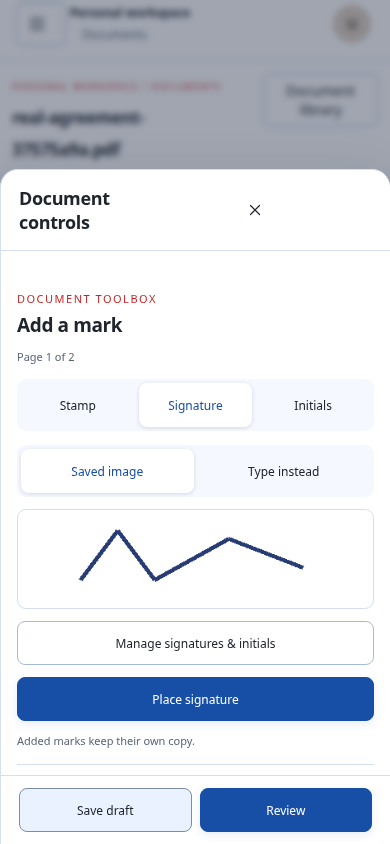
On a phone, tap Add mark and choose Signature. Use your saved image or Type instead. Choose Place signature, then tap the page or choose Place in centre.
These are captures of the actual app with example artwork and documents.
Open control closeup ↗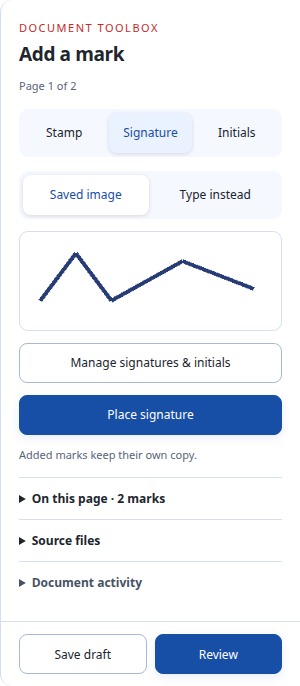
Working from a Word document? Upload the DOCX and check the converted PDF pages before creating your completed copy.
FOR AFRICA’S EVERYDAY WORK
Add your personal signature to a prepared business letter, proposal or report. Check that the recipient accepts the document format you intend to use.
Open Add mark in the document workspace, then choose Signature. Phone controls open in a bottom sheet so you can return to the page to place your mark.
Use the Initials tab for saved initials or a typed mark. Repeat a placement through the placement options and check the affected pages.
BEFORE YOU START
Choose the workflow that fits your documents.
Discuss Your WorkflowYes. Save a PNG or JPEG signature image in Signatures & initials. Transparent PNG images work best. The current upload limit is 5 MiB.
Yes. In the Signature tab, choose Type instead and enter your name. Review the mark and authorise your signature before creating the completed PDF.
The current workflow applies a visible signature image or typed mark. It does not create a certificate-backed digital signature. Confirm the recipient’s requirements before use.
Your saved signature and initials are private to your account. Team stamp permissions are managed separately from personal signatures.
You can upload a DOCX. Cigned converts it to PDF for placement and download. Check fonts, images and page breaks before confirming the finished document.
Verify your email to start a 14-day personal trial with 10 completed documents total. Trial previews and outputs have a trial footer. See the trial and paid plans.
PUT IT INTO PRACTICE
TRY IT WITH YOUR OWN DOCUMENTS
Verify your email for a 14-day personal trial with 10 completed documents total. Trial PDFs carry “Cigned Trial · cigned.com”.
Owner only · No teams during the trial · Paid access starts after confirmed payment