

Before you start
Use a prepared PDF or DOCX and decide which pages need your initials. Check the recipient’s requirements and leave a clear margin for the marks. Your personal initials are separate from shared company stamps.
To try the workflow, verify your email for a 14-day personal trial with 10 completed documents total. Trial previews and outputs carry a trial footer. Compare trial access and paid plans.
Follow these steps
1. Choose saved or typed initials
For an image, open your avatar menu → Signatures & initials and save your own PNG or JPEG initials image. Alternatively, use Type instead in the document workspace; you do not need to upload an image for a typed mark.
2. Upload the document and choose Initials
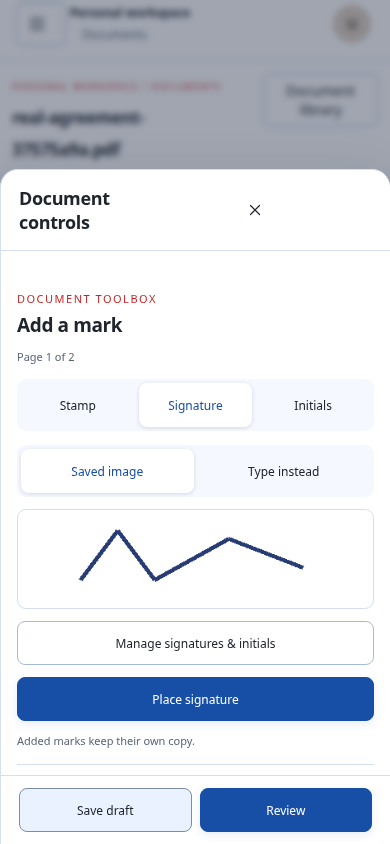
Open Documents, upload your PDF or DOCX and check the page previews. On a phone, tap Add mark. Choose Initials, then Saved image or Type instead. For a typed mark, fill Your initials and choose Typed mark colour.
3. Place and size your initials
Choose Place initials, then tap the page or use Place in centre. Drag the mark to a clear area and adjust Size. On a phone, tap a placed mark or Edit mark to reopen its controls.
4. Repeat only where needed
Select the placed initials and open More placement options. Under Repeat placement, choose All pages or Last page and select Apply to selected pages. Inspect every affected page, especially when margins or page orientation differ. For a few specific pages, place marks individually.
5. Review and download
Choose Review document and check the initials on every page. Confirm your page checks, select Create stamped PDF and then Download stamped PDF. That output button name is also used for PDFs containing initials. If you added a signature too, authorise it before creating the output.
Before you send the finished file
Make sure the initials belong to you, the required pages have a mark and no text is obscured. A visible initials image or typed mark does not create a certificate-backed digital signature.
Cigned keeps the original document. Creating a new completed copy does not change an earlier output.
If something needs adjusting
No initials image is available
Save one through Signatures & initials, or choose Type instead and enter Your initials.
A repeated mark covers text
Select the mark on that page and adjust its position or Size. Check the other pages individually.
A page should not have initials
Select that placement and choose Remove placement. Review the document again before creating the output.